1
Choose mathematical signs
In Templates, open Math signs. Choose Create from scratch for a full set or Add basic symbols to extend your font. Deselect unneeded signs and click Add selected.
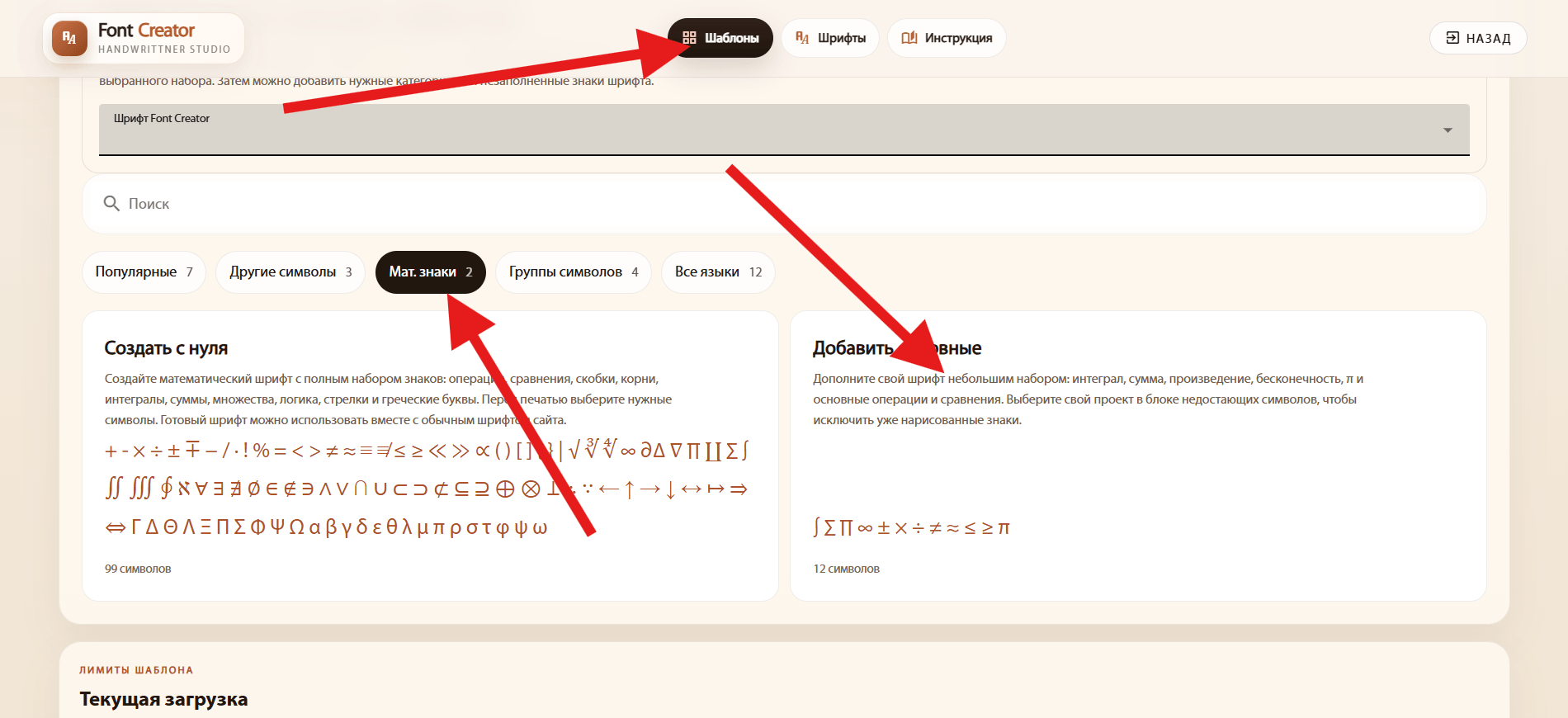
Add mathematical signs to your font or create a separate math font. Combine it with a font for letters and digits and adjust it using formula examples.
In Templates, open Math signs. Choose Create from scratch for a full set or Add basic symbols to extend your font. Deselect unneeded signs and click Add selected.
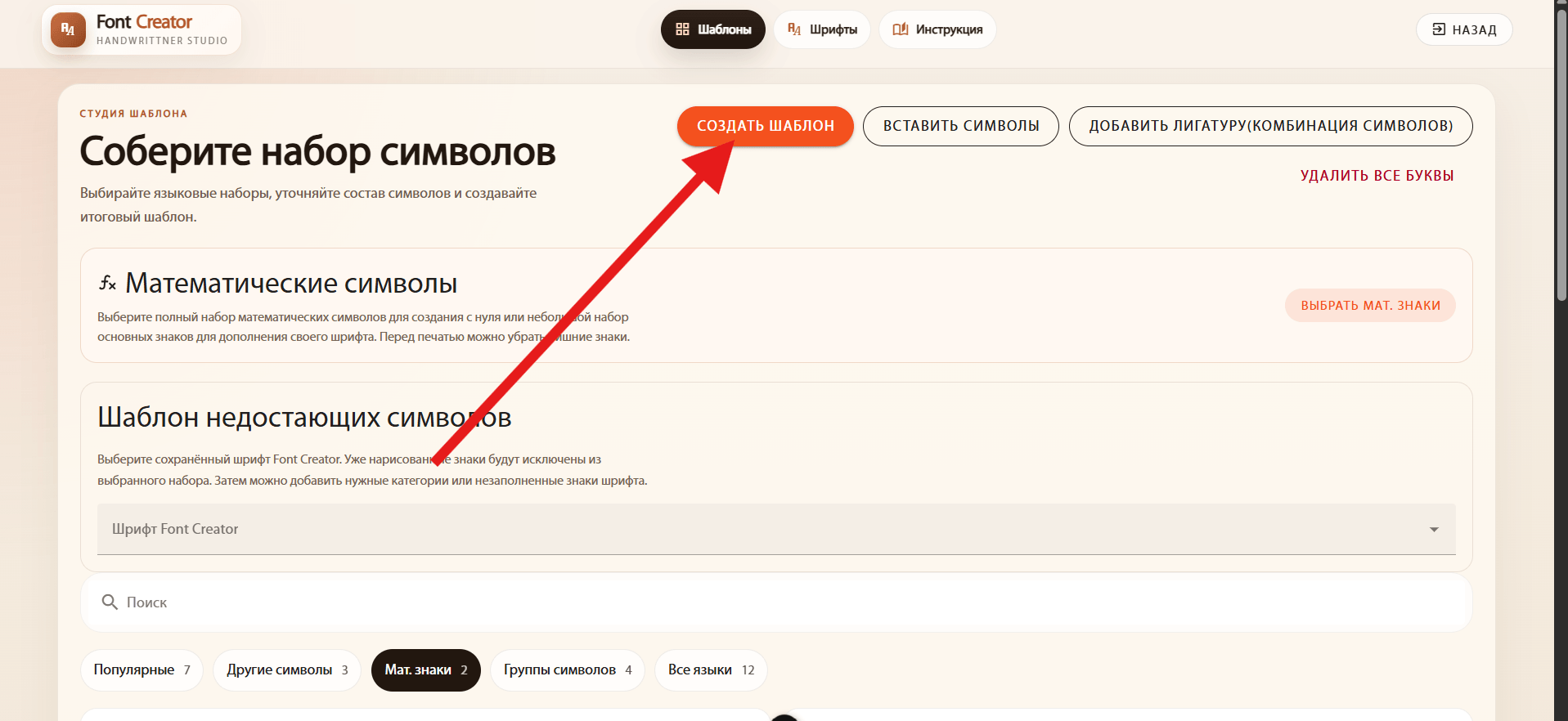
Click Create template, download the sheet and print it. Keep the original print scale and do not crop the corner markers or QR code.
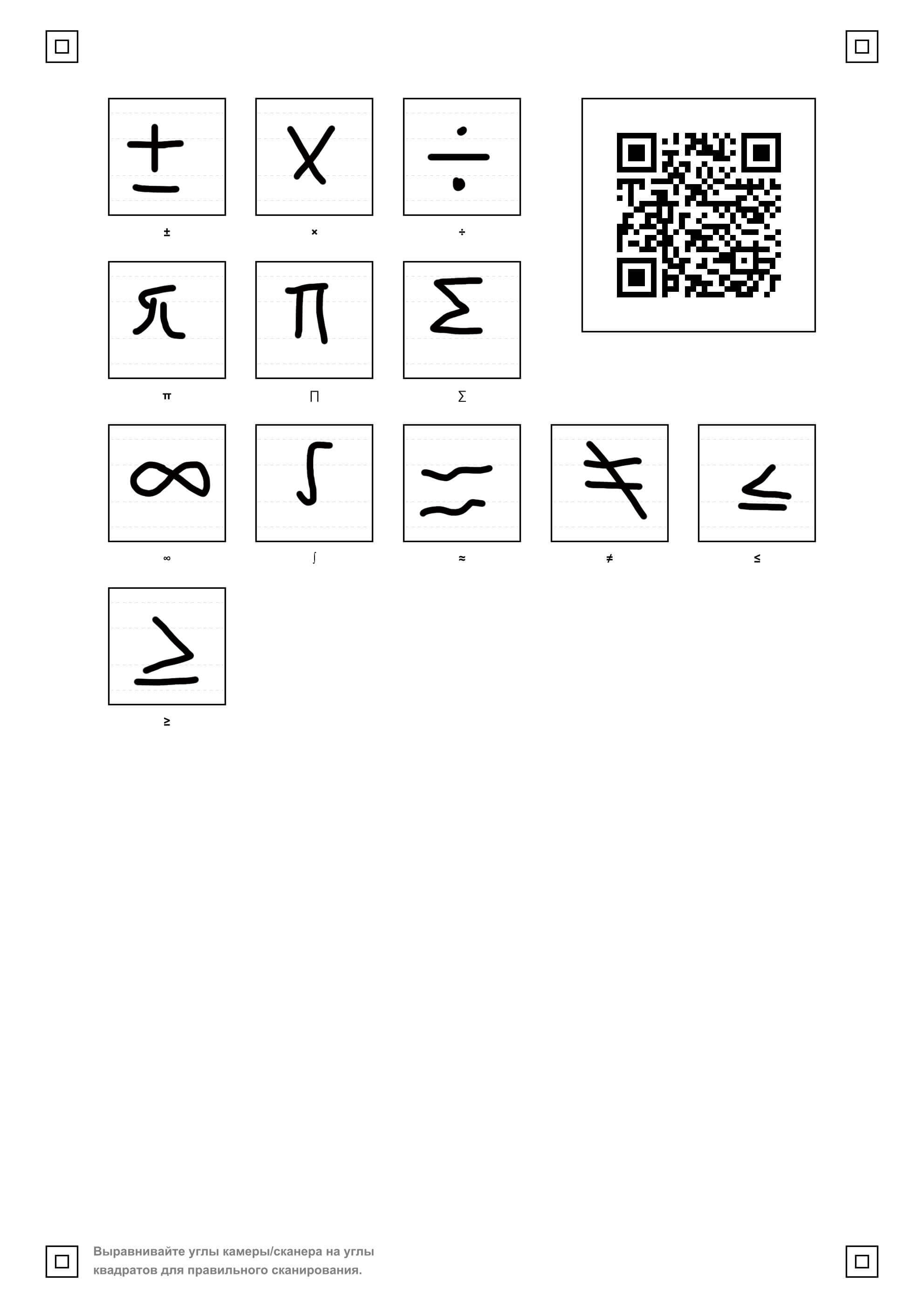
Write each letter in its own cell with a dark pen. Follow the guidelines, keep letter heights consistent and avoid touching the borders. Scan the sheet or photograph it in even lighting, with all corner markers and the QR code visible.
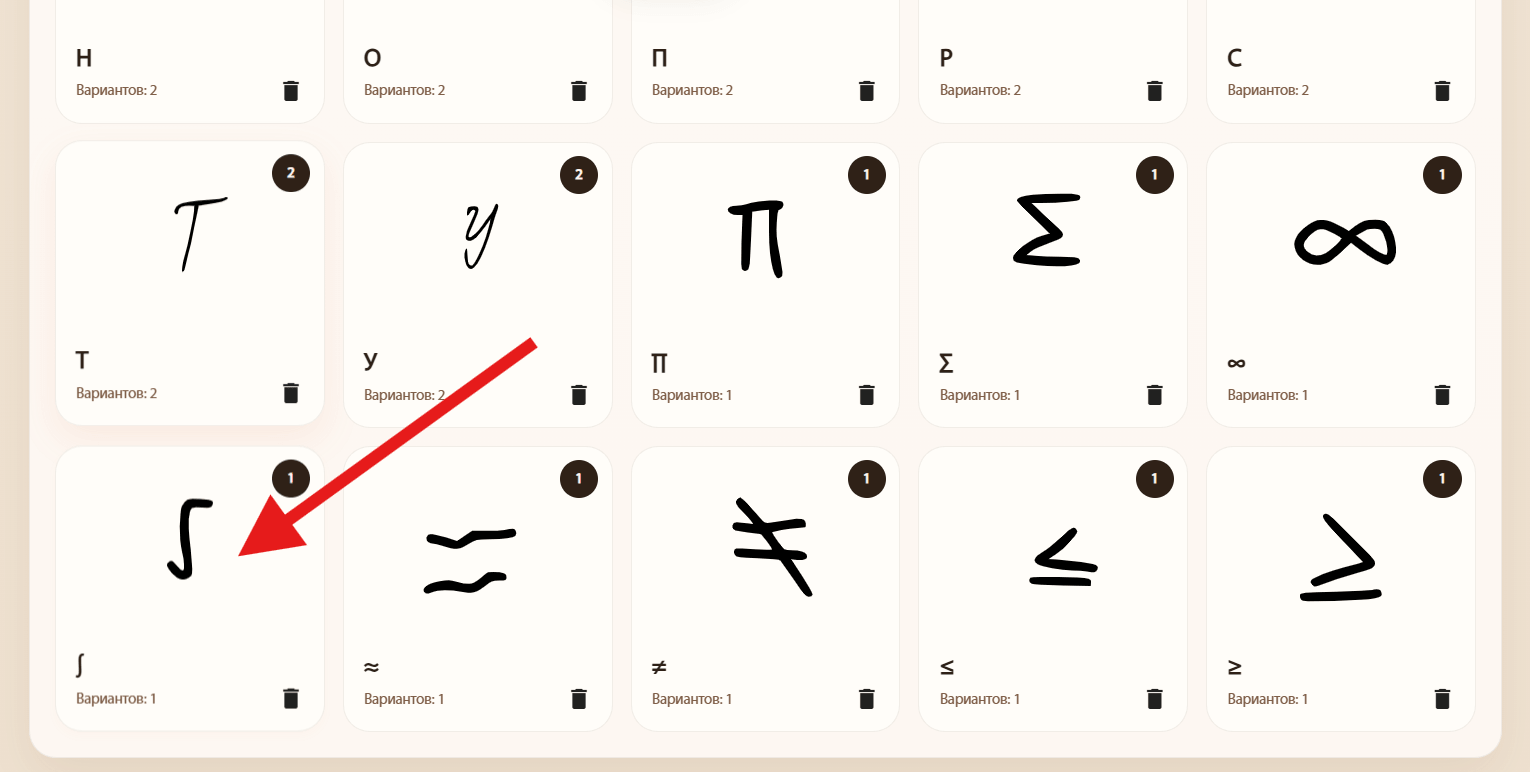
Open Fonts, choose your project and click Upload template. Create a project first if needed. After processing the sheet, review the symbols and save them to the project.

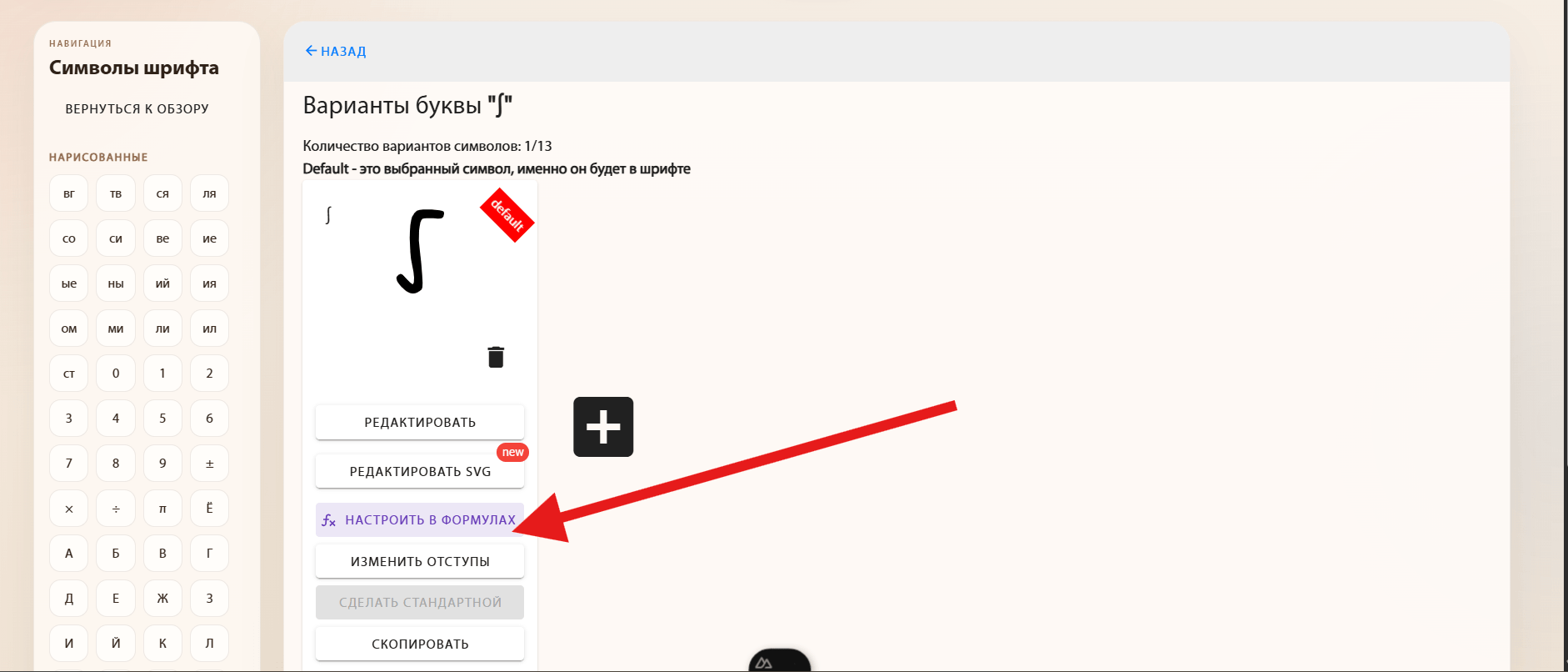
Click a sign in the project list, for example the integral ∫.
Open the drawn symbol and click Configure in formulas to see it next to letters, digits and indices.
Adjust symbol thickness, scale and spacing to match your handwriting. Check vertical positioning and compare several examples, then click Save to project.
For ∫, this example changes the scale (1.32×), thickness (−37%) and vertical position (−0.15 em). Choose your own values using the preview.
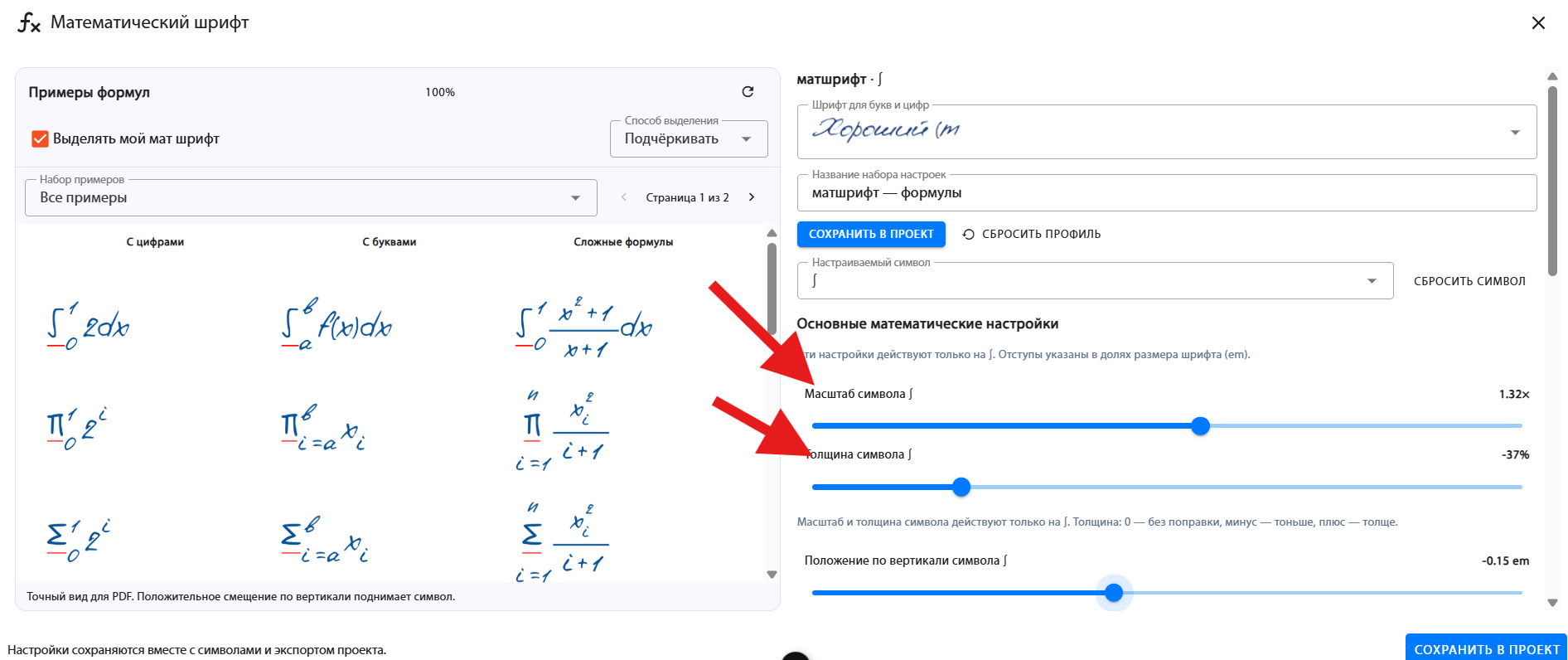
Check your changes in the examples and click “Save to project” to use the settings when creating notes. “Reset profile” restores the default values.