


Other Instructions:
Photo Guide Creation Instructions
Font Guide Creation Instructions
Guide Creation Instructions with printer

Frequently Asked Questions
Cannot download file/image
Extra elements/No text/Lines shifted/Color issue
Properly Adjusting All Margins
How to Change the Format?
How to Add a Caption to the Margins?
How to Remove Word Wrapping?
How to Add Your Own Font?
How to Add Page Numbers?
How to Change Line Spacing?
How to Adjust the Left Margin for a New Line?
How to Insert a Table or Image into Text?
How to Change Text Color?
How to Modify Table Settings?
How to Make Specific Text Larger than Others?
Text is Too Small/Big, How to Adjust Its Size?
I bought a subscription, but it didn't appear
Cannot download file/image
If you're experiencing trouble with image downloads, try the following steps in Chrome:
- Open the Chrome browser on your computer.
- In the top-right corner of the window, click the three-dot menu icon (More), then select 'Settings.'
- Choose 'Privacy and security,' then 'Site settings.'
- Click 'Additional permissions,' then 'Automatic downloads.'
- Enable the setting that says 'Always ask before downloading files.'
- If the image is still not downloading, you can click 'Keep anyway.' If you're using a phone, press and hold on the image that appears and save it to your files or photos.
If you're on a PC, right-click the image and select 'Save as.'
Extra elements/No text/Lines shifted/Color issue
If you have an error in color/underlining/incorrectly positioned lines, select this text and click to reset the design. If it didn't help, reset and save the settings!
Properly Adjusting All Margins
In the input field, each paragraph is a new line. Therefore, after each paragraph, there will be an indent in the summary (first-line indentation).
Each empty line (gap between lines) adds spacing between lines in the created summary (you can adjust the distance in 'Additional Settings').
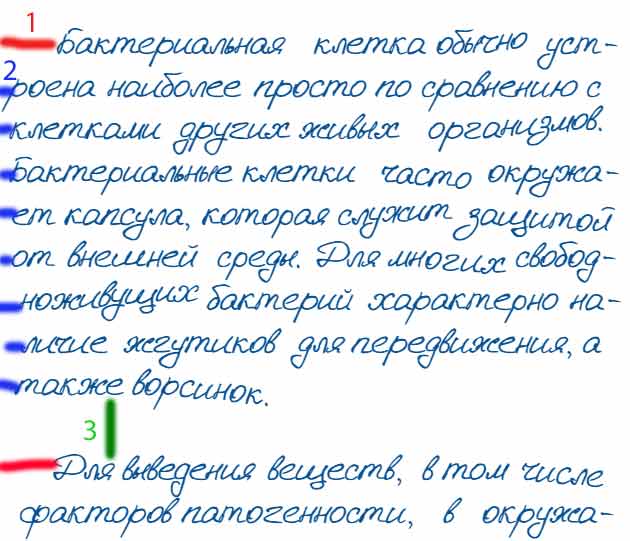
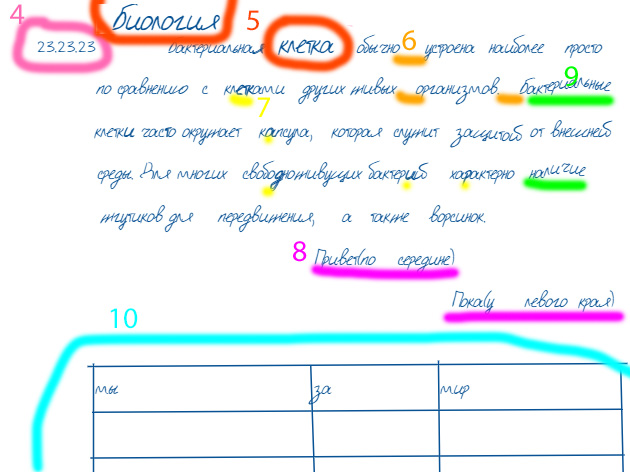
1 Indent the first line of the paragraph: Additional Settings: -> Miscellaneous -> Add indent to new line
2 Adjust left indent for each line: Additional Settings: -> Miscellaneous -> Add left spacing before each line (at the bottom). To remove spacing, check the box and enter 0. To remove spacing, check the box and enter 0
3 Line spacing settings: Additional Settings: -> Miscellaneous -> Line spacing between paragraphs
4 To add any additional text, go to Highlights -> Add Additional Content (Adjust indents, uncheck if no left indent is needed, Uncheck if no left indent is needed)
5 To enlarge any letters in the text: select the desired letters and press 
6 Word spacing settings: Additional Settings: -> Add different spacing between words
7 To add highlights (letter outlining), go to: Highlights -> Enable letter highlighting
8 To align text left/right/center, press on the panel where you insert text
9 Changing letter positions (zigzag up example): (Zig Zag Up): Font Modifiers -> Zig Zag Up
10 To create a table, press on the panel where you insert text
To configure the table, click on the table itself and in the popup window, click the settings icon, on the panel where you insert text, settings icon
Text transition to a new page - You can change the font size of selected text by highlighting the text and clicking on the font size button on the toolbar.
- If your copied text doesn't match the text in the created summary (missing paragraphs or extra paragraphs), if there are unnecessary text styles (color highlighting, underline, strikethrough, font size, etc.)
To apply superscript or subscript to selected text
- Additional line spacing between lines.
- Paragraph alignment and adding indentation on left or right.
Size - Default font size is 16, suitable for most fonts.
Format - A5 is the default format, suitable for a standard notebook sheet. A4 is the landscape sheet format. - Page orientation, default is portrait.
- Number of columns for the notes, default is one.
For more detailed settings, you can read by clicking the 
More information in the <b>Instructions</b> tab at the top of the website.
How to Change the Format?
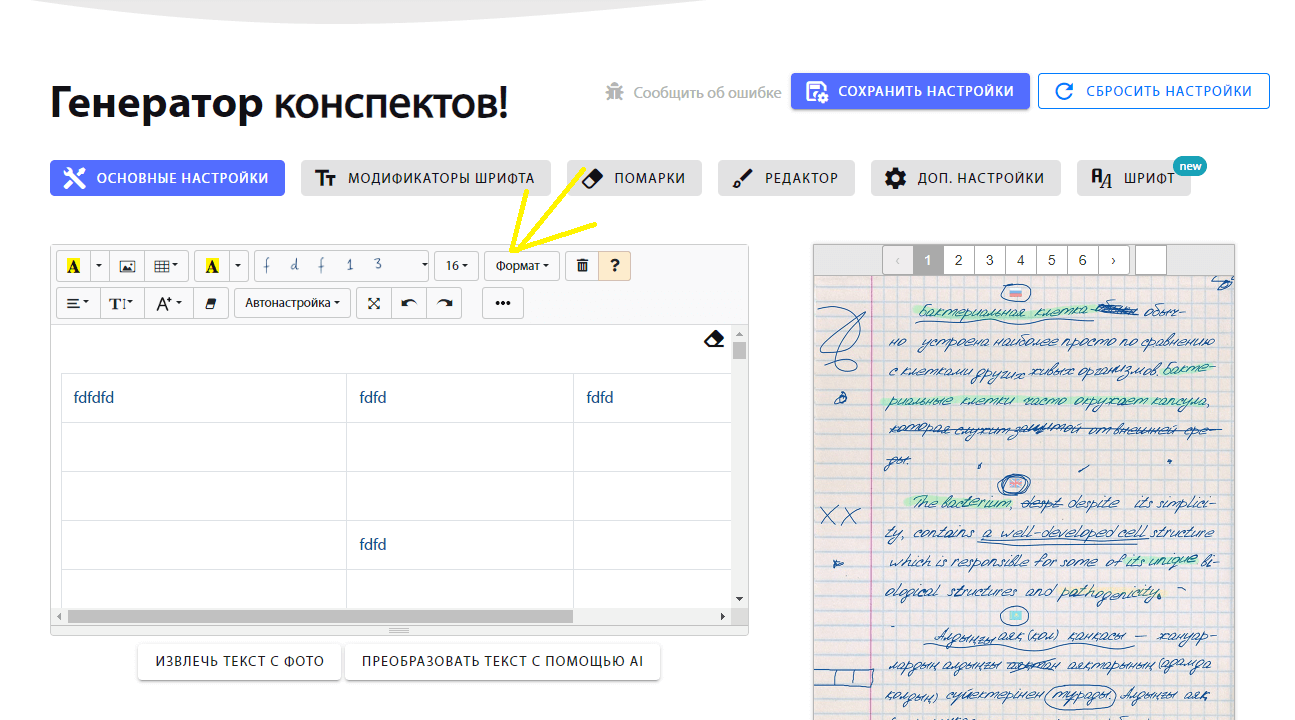
To change the format, click 'Format' on the panel where you insert text. If your format isn't there, click 'Create Format' in the dropdown menu.
How to Add a Caption to the Margins?
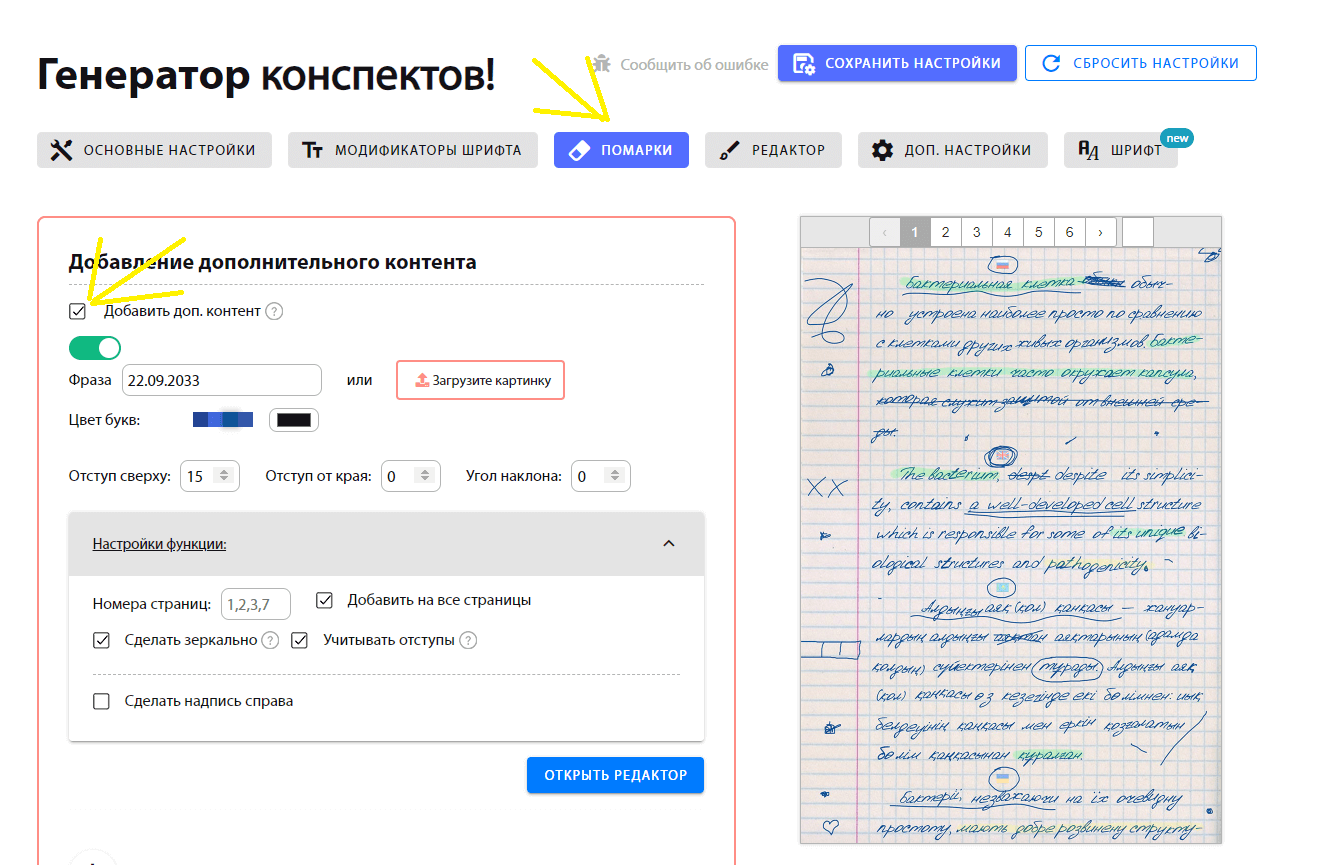
To add a caption anywhere in the text, go to 'Markup,' then 'Add Additional Content.' Enter text or upload a photo and adjust the margins. It's better to use the editor for added convenience.
How to Remove Word Wrapping?
To disable automatic word hyphenation (hyphens when a word breaks), go to 'Miscellaneous,' click 'Additional settings,' and disable 'Add automatic word hyphenation.'
How to Add Your Own Font?
If you have an existing font, go to 'Fonts' and click 'Add Existing Font.'
If you want to create your own font on the site, click 'Create Custom Font.' Learn more: Как создать свой шрифт?
How to Add Page Numbers?
To add page numbering, go to ' Advanced settings,' find 'Page Numbering Settings,' and enable the function.
How to Change Line Spacing?
To adjust paragraph spacing, go to ' Advanced settings,' find 'Miscellaneous,' and change 'Spacing Between Paragraphs (mm):'
How to Adjust the Left Margin for a New Line?
To change the left margin for a paragraph on a page, go to ' Advanced settings,' find 'Miscellaneous,' and adjust the 'Margin Settings.'
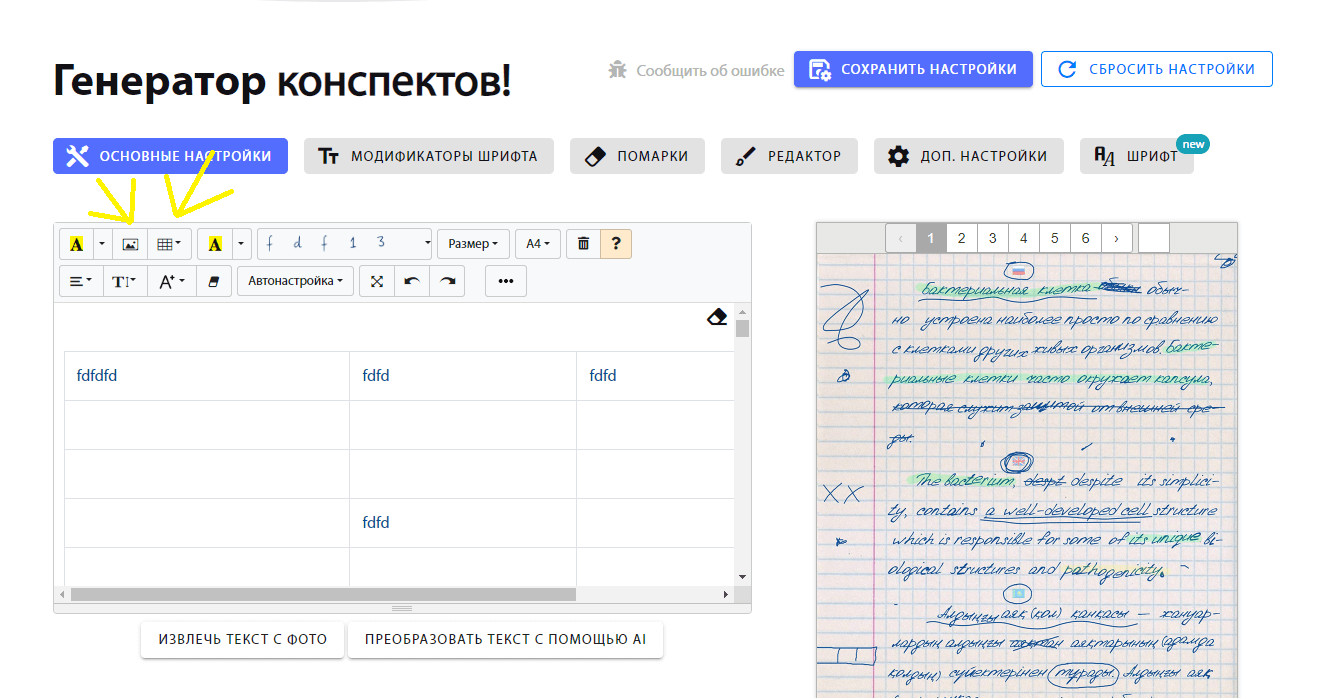
How to Insert a Table or Image into Text?
Click the table or image on the panel where you insert text.
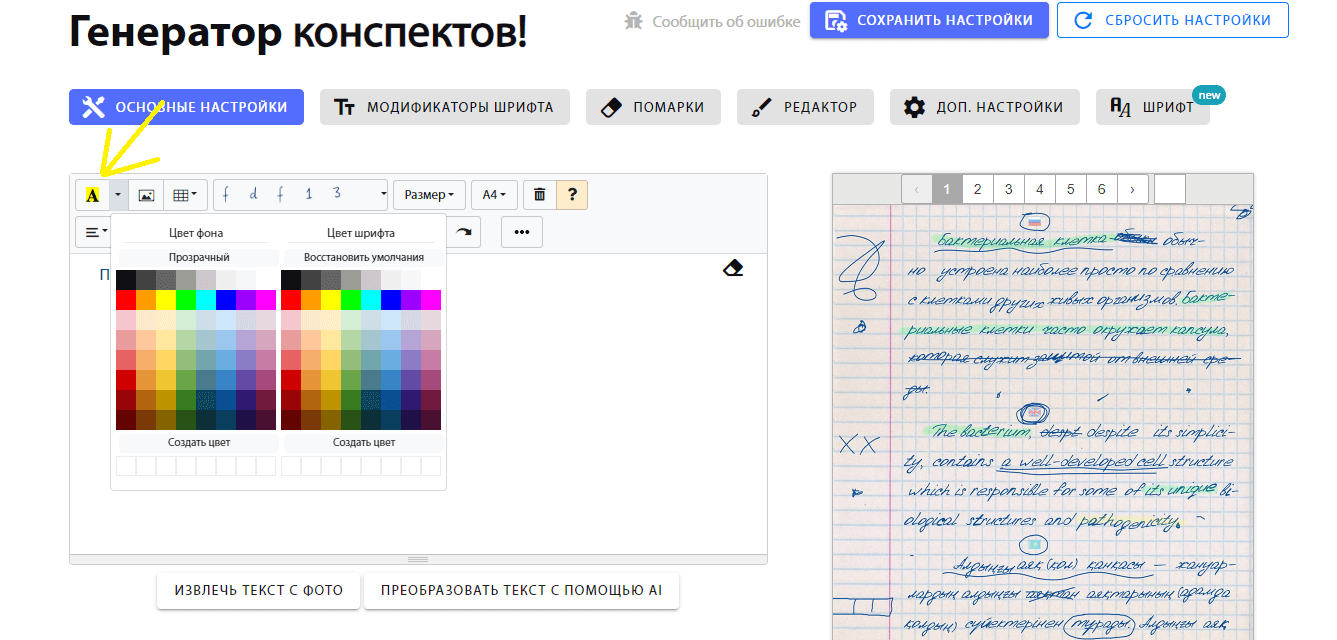
How to Change Text Color?
To change text color, highlight the text and click on 'Text Color' in the text insertion panel.
How to Modify Table Settings?
To modify table settings, click on the created table. A menu will appear where you can click 'Table Settings.' There, you can adjust the curvature, color, margins, and width.
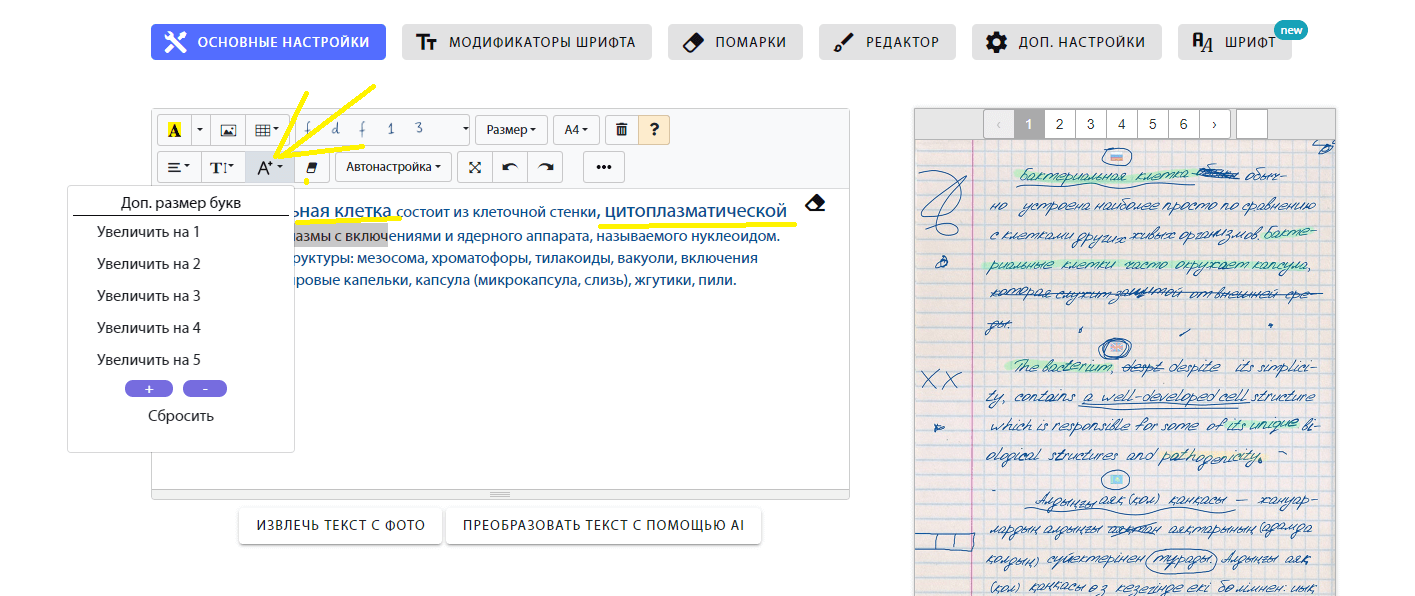
How to Make Specific Text Larger than Others?
To change the text size, select the text you want to modify and click 'Font Size.'
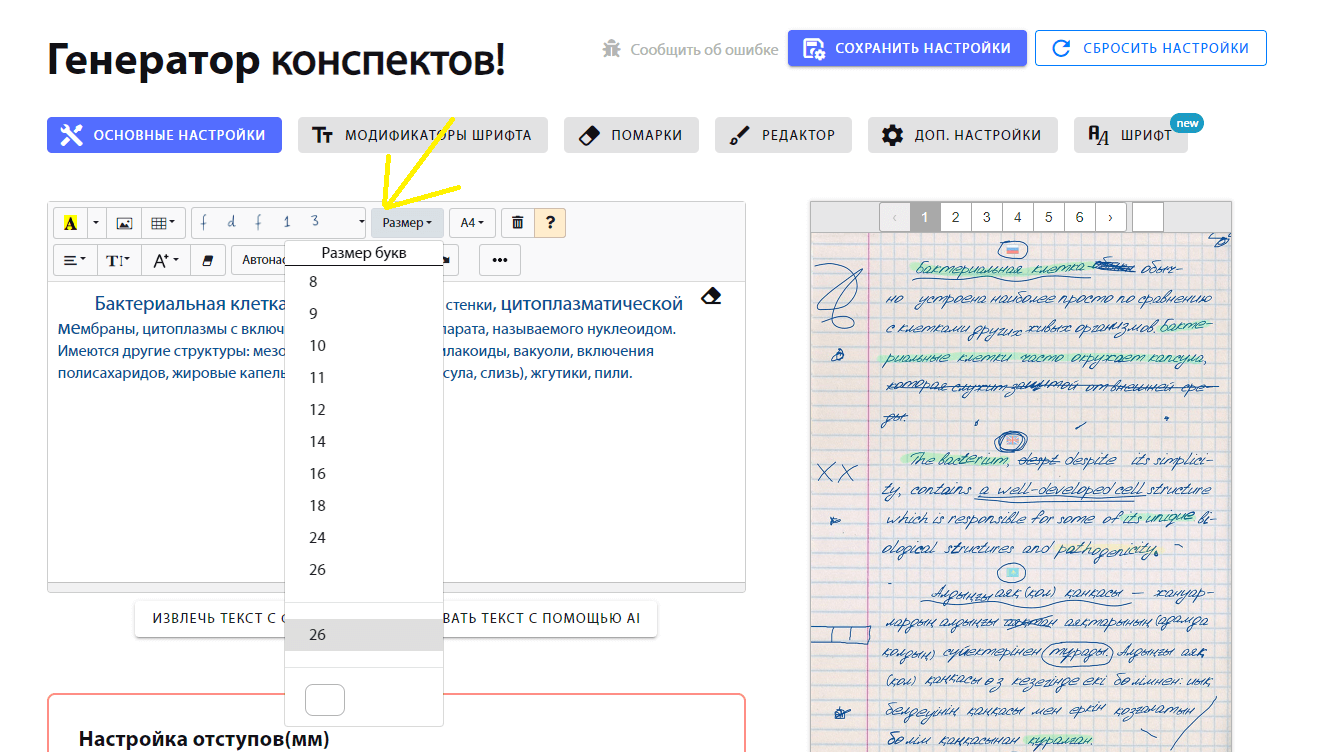
Text is Too Small/Big, How to Adjust Its Size?
To change the text size, click 'Size' on the panel where you insert text and adjust it.
I bought a subscription, but it didn't appear
Try logging into your account again. If that doesn't help, clear cookies and log in again. Also, check if the payment went through. If none of the methods work, contact me:


